
Introduction
Are you really using your iPhone to its full potential? 🤔
Most users only scratch the surface—even though Apple packs dozens of secret iPhone features inside every update of iOS.
If you’ve ever felt like your iPhone could do more—but didn’t know how—this guide is for you.
In this post, you’ll discover hidden iPhone tricks, unknown iPhone features, and powerful iPhone hacks that can completely change how you use your device.
Chalo, let’s unlock your iPhone’s full power 🚀
Table of Contents
🔥 Top Secret iPhone Features You Must Know
1. Back Tap Magic (Double/Triple Tap)
What it does
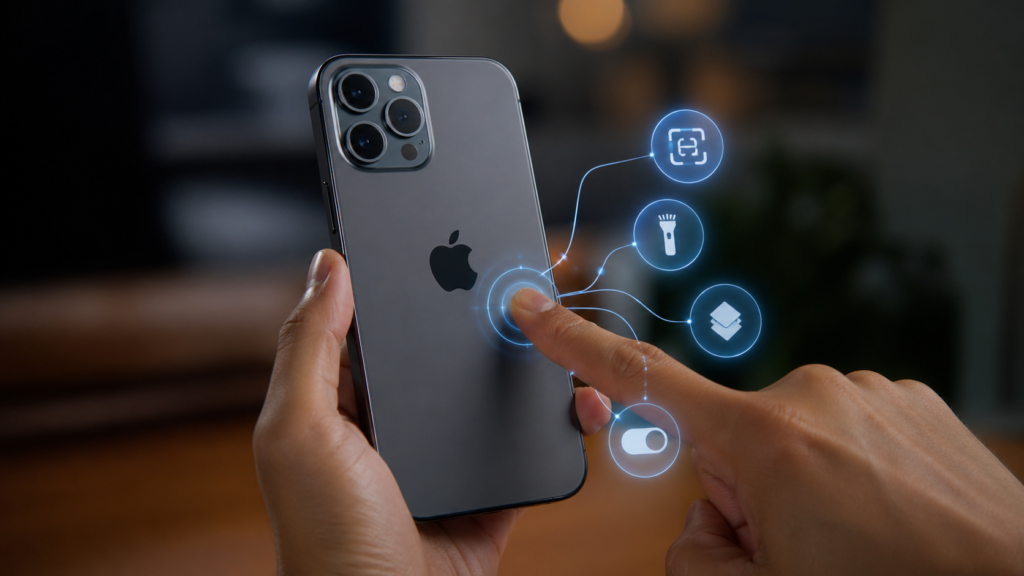
Turn the back of your iPhone into a shortcut button.
Why it’s useful
You can take screenshots, open apps, or trigger shortcuts instantly.
How to enable
- Go to Settings
- Tap Accessibility
- Select Touch → Back Tap
- Choose Double or Triple Tap action
Supported
iPhone 8 and later (iOS 14+)
Pro Tip
Set Double Tap for Screenshot and Triple Tap for Flashlight 🔦
2. Live Text (Copy Text from Images)
What it does
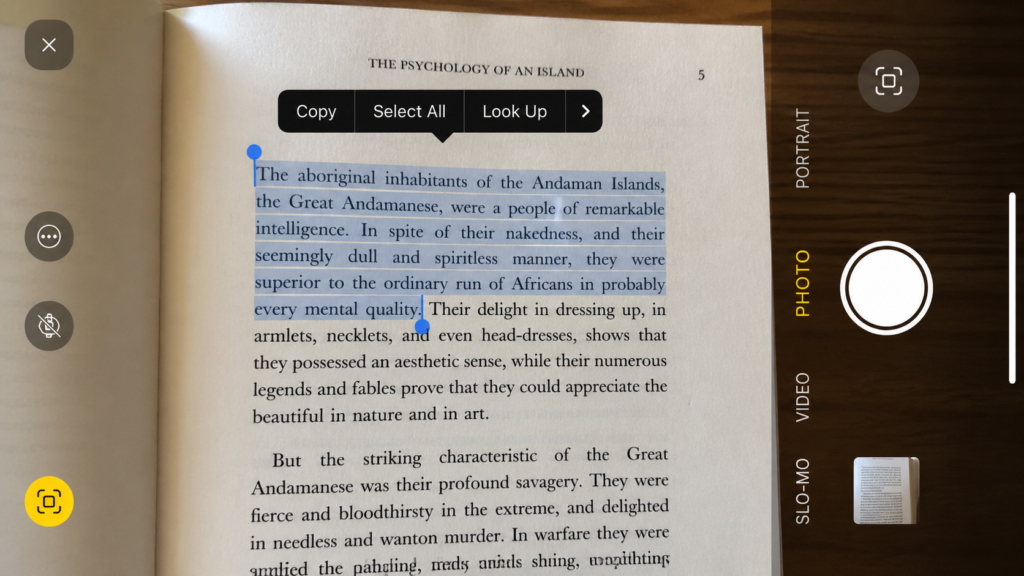
Extract text from photos or camera in real-time.
Why it’s useful
No need to type manually—just copy from image.
Steps
- Open Camera or Photos
- Tap the text icon
- Select and copy text
Pro Tip
Use it for copying WiFi passwords or notes quickly.
3. Hidden Trackpad Mode
What it does
Turns keyboard into a trackpad.
Why it’s useful
Perfect for precise cursor movement.
Steps
- Press and hold spacebar
- Move finger to control cursor
Pro Tip
Use it for editing long messages easily.
4. Shake to Undo
What it does
Undo typing mistakes by shaking your phone.
Why it’s useful
Quick correction without deleting manually.
Steps
Just shake your iPhone → Tap Undo
5. One-Handed Keyboard
What it does
Moves keyboard to left/right side.
Why it’s useful
Easy typing with one hand.
Steps
- Hold globe icon 🌐
- Select left/right keyboard
⚙️ Hidden Settings That Improve Performance
6. Reduce Motion (Boost Speed)
What it does
Reduces animations.
Why useful
Makes iPhone feel faster.
Steps
- Settings → Accessibility
- Motion → Enable Reduce Motion
7. Background App Refresh Control
What it does
Stops apps from running in background.
Why useful
Saves battery 🔋
Steps
- Settings → General
- Background App Refresh → Turn OFF
8. Auto-Brightness Hidden Setting
What it does
Adjusts brightness automatically.
Steps
Settings → Accessibility → Display → Auto-Brightness
🔒 Privacy & Security Hidden Features
9. App Tracking Transparency
What it does
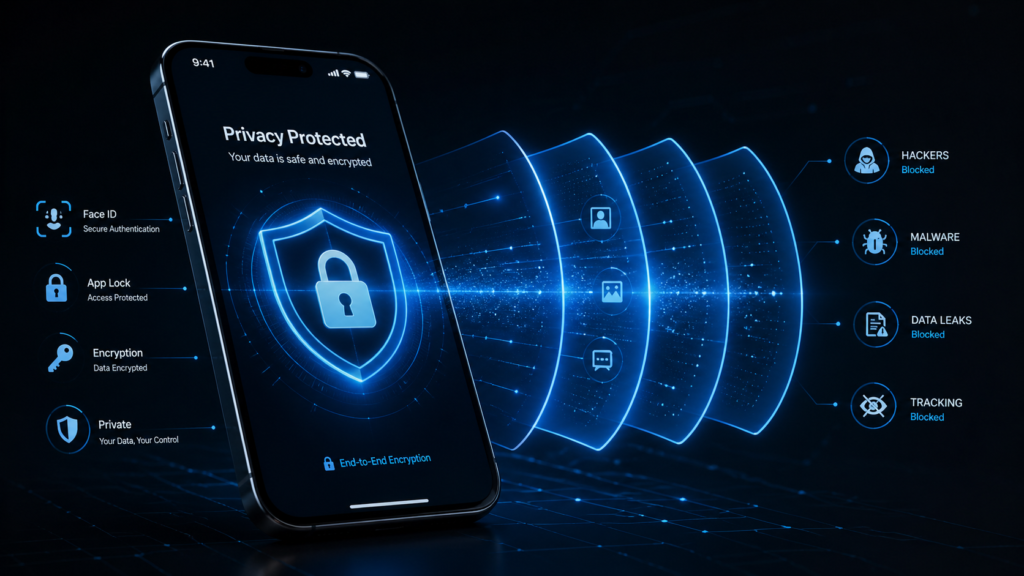
Stops apps from tracking you.
Steps
Settings → Privacy → Tracking → Disable
👉 Learn more from Apple’s privacy guide
10. Hidden Photo Album Lock
What it does
Locks sensitive photos.
Steps
- Move photo to Hidden album
- Enable Face ID lock
11. Location Sharing Control
What it does
Control which apps access your location.
Pro Tip
Set location access to “While Using App”
⚡ Productivity Tricks & Shortcuts
12. Text Replacement Shortcuts
What it does
Type shortcuts expand into full sentences.
Example
“omw” → “On my way!”
Steps
Settings → Keyboard → Text Replacement
13. Focus Modes (Do Not Disturb Advanced)
What it does
Custom notification filters.
Why useful
Stay distraction-free.
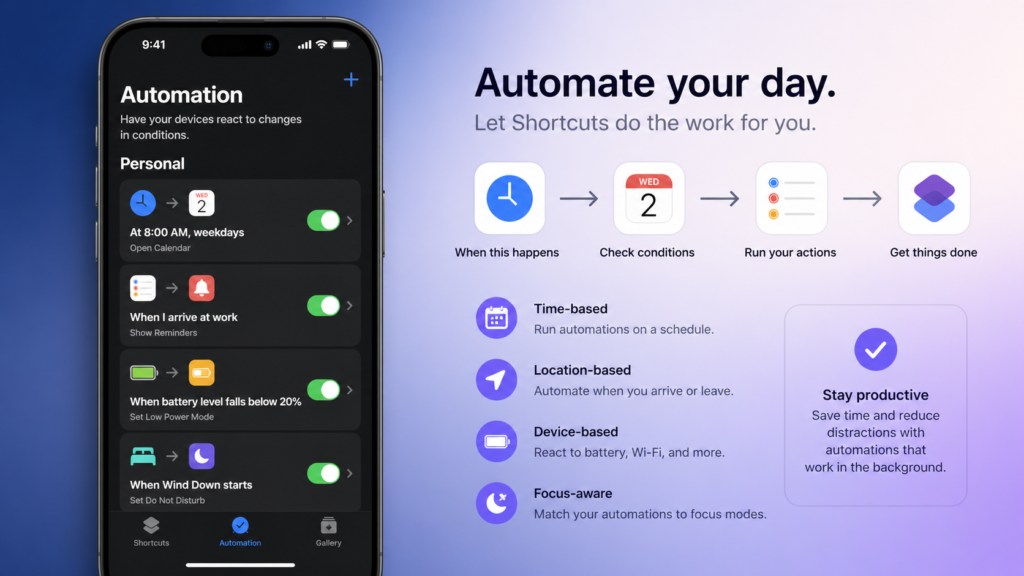
14. Siri Shortcuts Automation
What it does
Automate daily tasks.
Example
Turn on WiFi + play music with one tap
📸 Camera & Battery Hidden Features
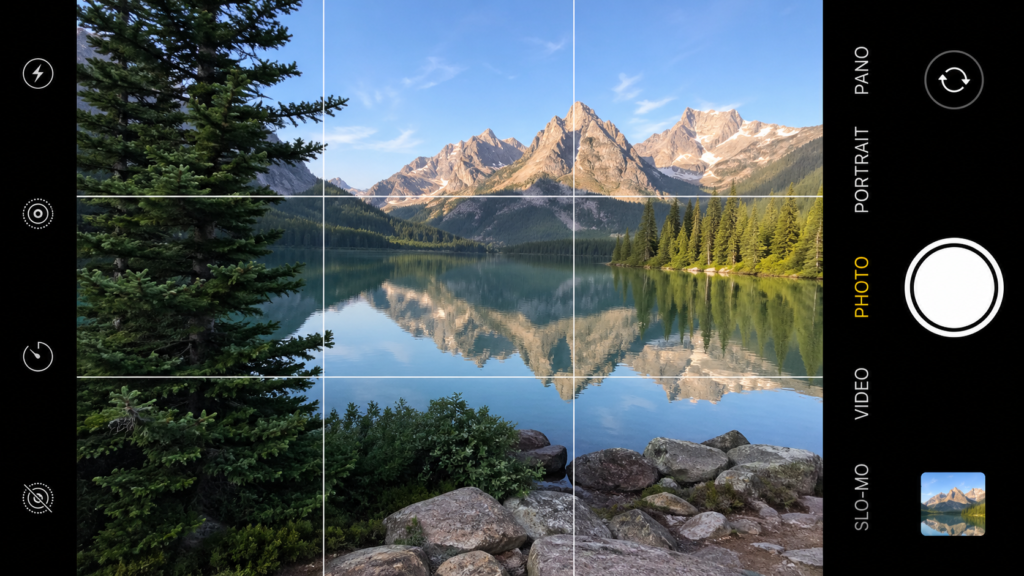
15. Pro Camera Grid & Level
What it does
Helps take perfect photos.
Steps
Settings → Camera → Enable Grid
16. Battery Health Optimization
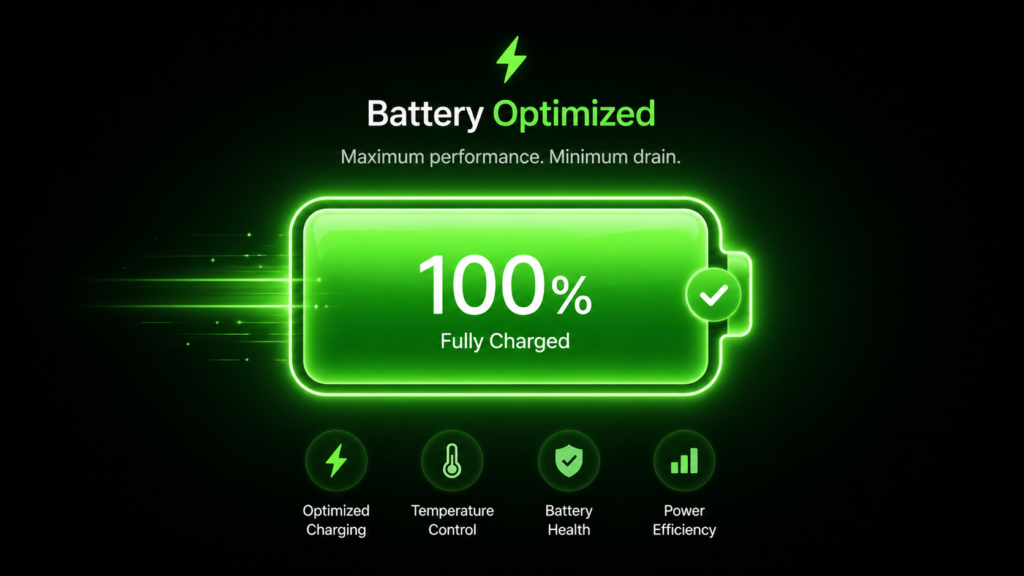
What it does
Extends battery lifespan.
Steps
Settings → Battery → Battery Health → Enable Optimized Charging
📊 Comparison Table of Top Features
| Feature | Use Case | Benefit |
|---|---|---|
| Back Tap | Quick shortcuts | Saves time |
| Live Text | Copy text | Productivity boost |
| Focus Mode | Work/study | No distractions |
| Reduce Motion | Speed | Better performance |
| Battery Optimization | Battery life | Long-term health |
👶 Best iPhone Features for Beginners
If you’re new, start with these:
- Back Tap
- Live Text
- One-Hand Keyboard
- Focus Mode
- Auto Brightness
These are easy and super useful 👍
⚡ Hidden Settings You Should Turn ON Today
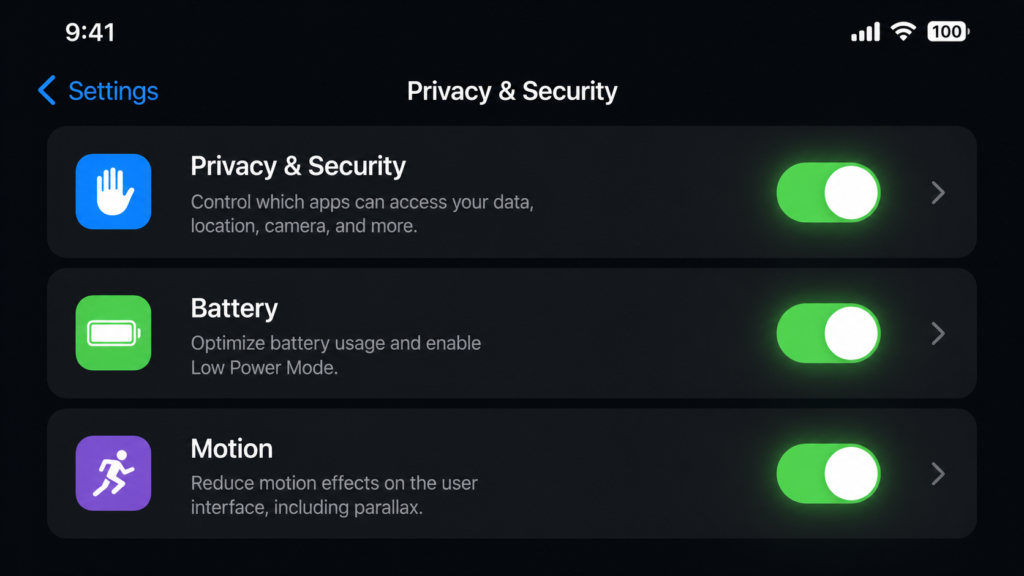
- Reduce Motion
- Optimized Battery Charging
- App Tracking OFF
- Location Control
- Background Refresh OFF
❌ Common Mistakes iPhone Users Make
- Keeping all apps running
- Not updating iOS
- Ignoring battery health
- Overusing brightness
- Not using Focus Mode
🚀 Pro Tips to Boost iPhone Performance & Battery
- Restart your iPhone weekly
- Delete unused apps
- Keep storage below 80%
- Use Low Power Mode
- Turn off unnecessary notifications
👉 Read also: Best Health Insurance Plans USA 2026
👉 Check official iOS updates guide
👉 Explore Apple feature page
FAQs
1. What are the best secret iPhone features in 2026?
The best secret iPhone features include Back Tap, Live Text, Focus Mode, and Siri Shortcuts.
2. How do I enable secret iPhone features?
Go to Settings → Accessibility or Privacy sections to unlock hidden options.
3. Are hidden iPhone tricks safe to use?
Yes, all hidden iPhone tricks are official features from Apple.
4. Which iPhone has the most hidden features?
Latest iPhones with newest iOS versions have maximum features.
5. Do secret iPhone features improve battery life?
Yes, features like Reduce Motion and Background Refresh control help.
6. What are unknown iPhone features for beginners?
Back Tap, Live Text, and Focus Mode are great for beginners.
7. How often does Apple add new secret iPhone features?
With every iOS update, new features are introduced.
🏁 Conclusion
Your iPhone is way more powerful than you think.
By using these secret iPhone features, you can save time, boost productivity, improve privacy, and even extend battery life.
Ab bas ek kaam karo 👇
Try at least 3 features today—you’ll immediately feel the difference.
👉 If you found this helpful, share this post with your friends and help them unlock their iPhone’s hidden power too 🚀